
LEARNING TOOLS · CIRCUITS, CODE & FEEDBACK

Learn Arduino Vercel App: Lessons & Features
Learn Arduino is a browser-based electronics course by Dilum Sanjaya, available at learn-arduino-red.vercel.app. For readers searching learn arduino vercel app, AINavly examines how its 16 lessons connect component explanations, 3D circuits, sketch controls and serial feedback—and where that guided experience ends.
- Focus
- Beginner electronics
- Format
- 16 interactive lessons
- Access
- Free public browser lessons
- Creator
- Dilum Sanjaya
What makes it useful as a learning tool?
The strongest feature is the connection between representations: a physical-looking circuit, an explanation of its parts, a code example and visible output. Keeping those views together can make a beginner’s questions more specific. The useful evaluation is whether you can explain an input, a decision and an output after trying a lesson.
Find the right app and understand its scope
The project’s public name is Learn Arduino. Its exact destination is learn-arduino-red.vercel.app, while “learn arduino vercel app” is a way to search for that deployment. The project describes 16 free beginner lessons and names Dilum Sanjaya as the author.
This is a guided educational experience with supplied circuits and examples. We distinguish the controls verified in those examples from broader claims about circuit design, physical hardware support or unrestricted code compilation.
Four connected parts of the learning workflow
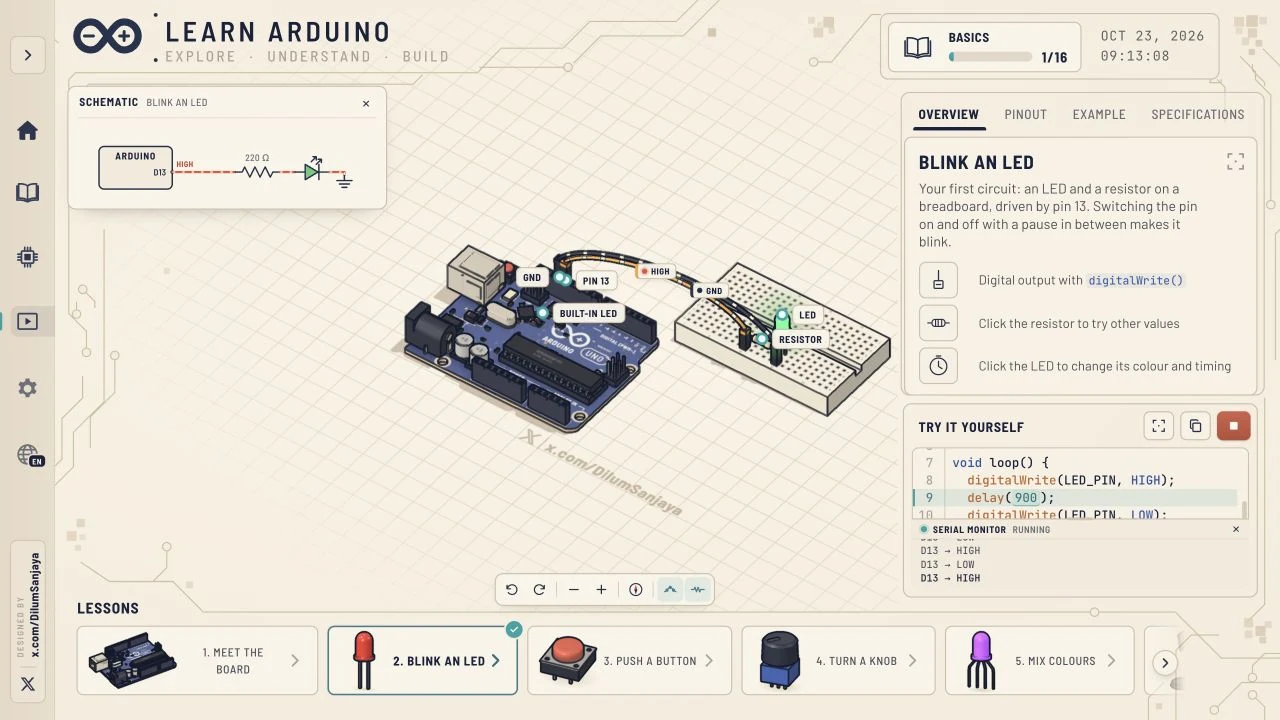
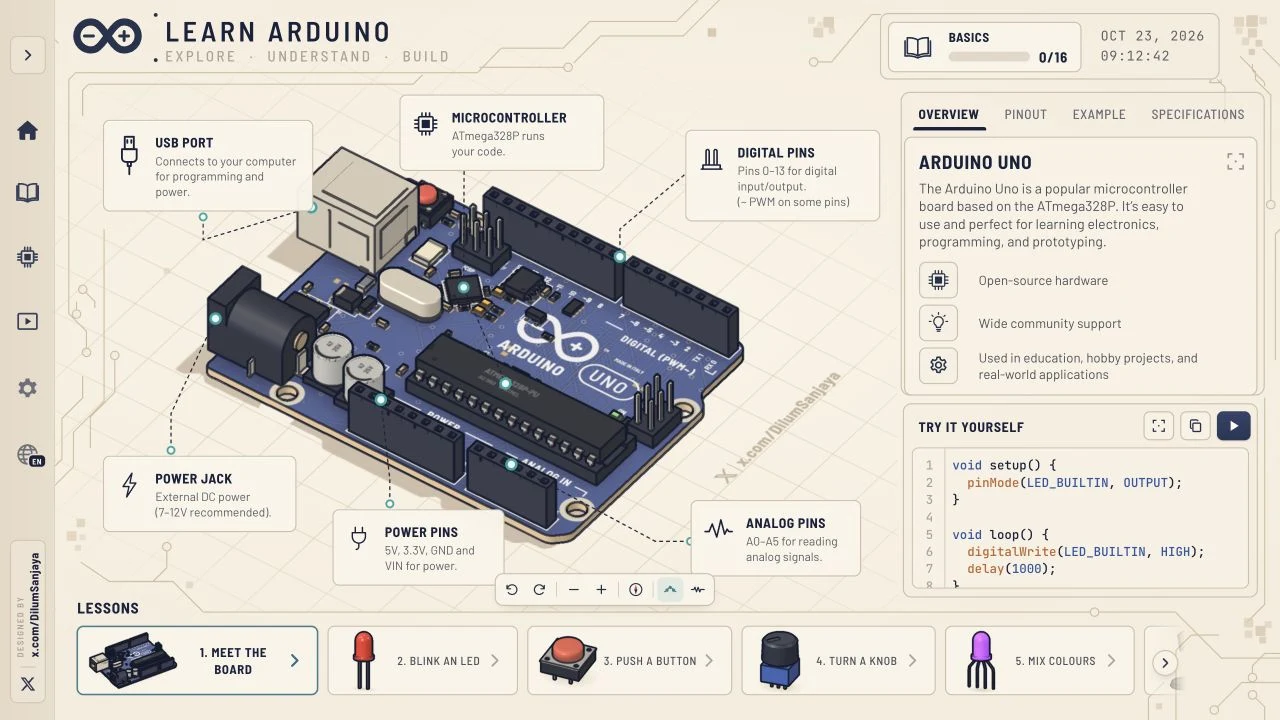
The main workspace shows a 3D Arduino Uno and the components for the selected lesson. Context labels name connections and parts. The lesson-information panel provides Overview, Pinout, Example and Specifications tabs, while a separate code area includes Run sketch and Copy code controls.
A serial monitor provides feedback when a sketch is running. A schematic toggle offers another representation of the circuit. During our LED check, the diagram displayed the D13 output, a resistor and an LED while the monitor alternated HIGH and LOW.
What we verified in the browser
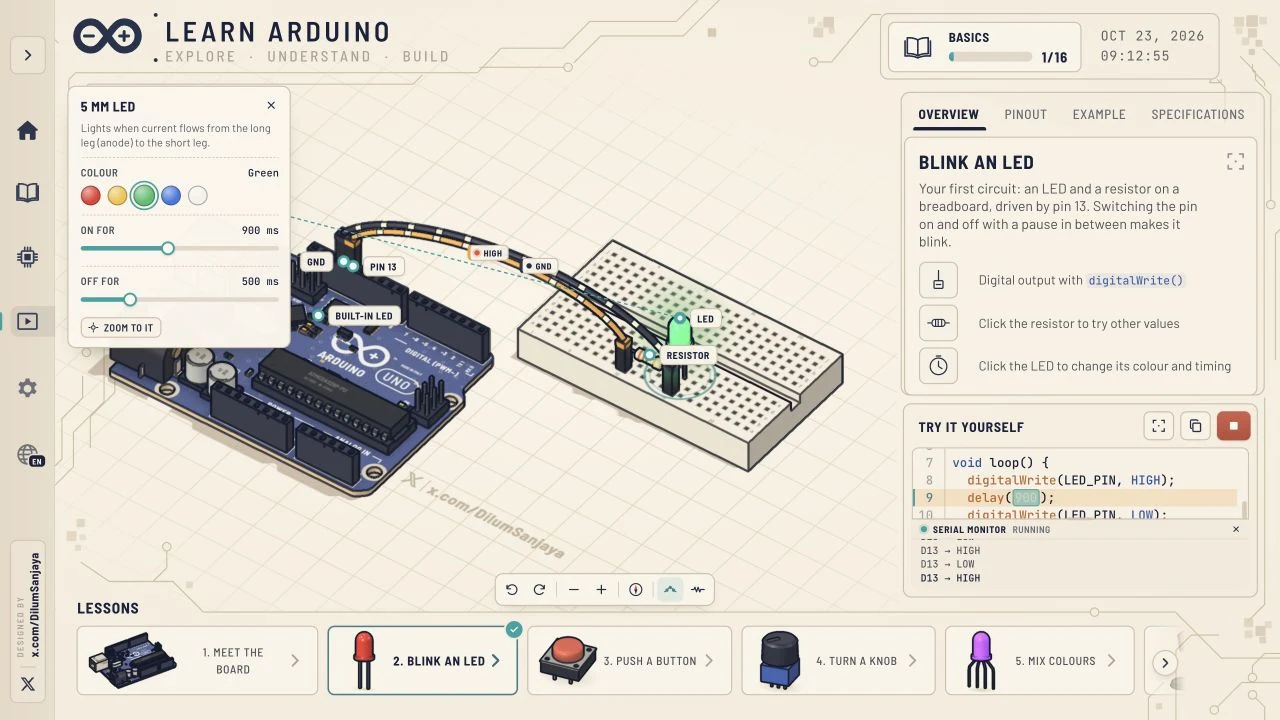
We opened the board overview, selected Blink an LED, started its sketch and observed RUNNING plus alternating D13 messages. The LED inspector allowed a Green selection and an ON FOR value of 900 ms; the displayed sketch changed to match.
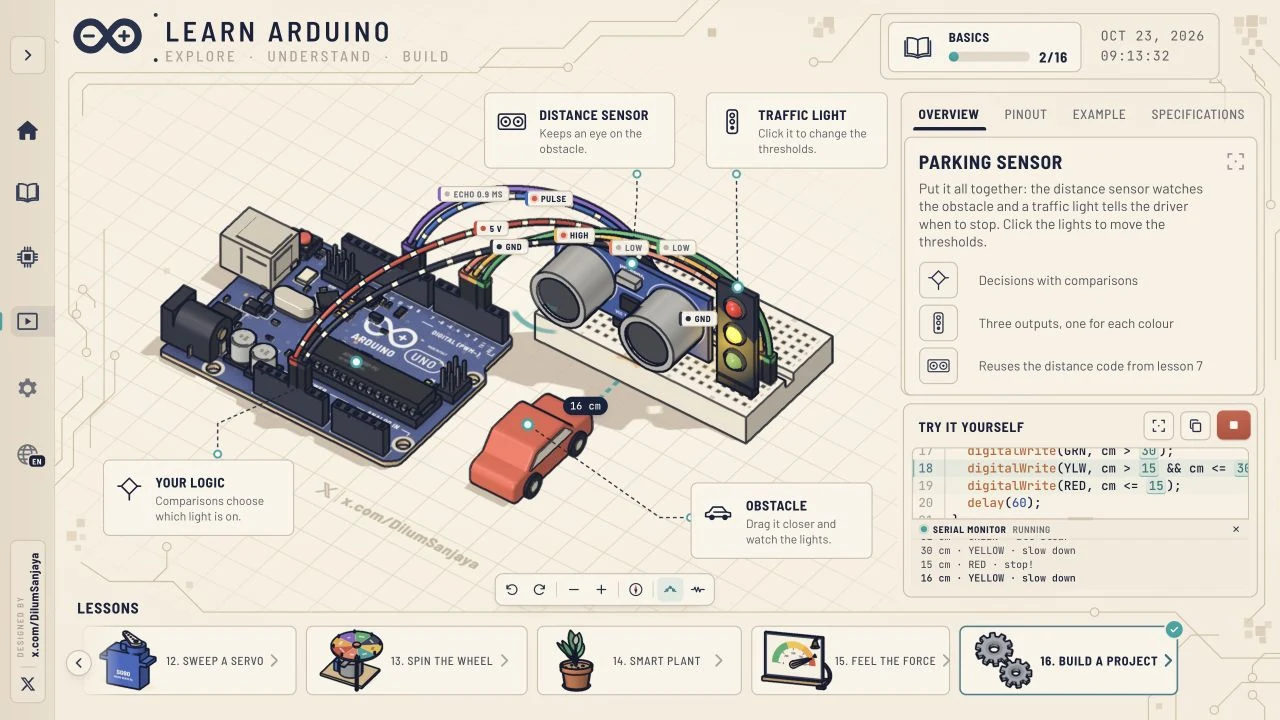
We also opened Build a project, whose panel identifies a parking sensor. Running it produced distance and traffic-light messages including RED, YELLOW and GREEN states. Those observations establish that the included examples respond, not that every lesson or arbitrary program was tested.
How the 16-lesson sequence develops
The course starts with recognizing the board and digital output. It then introduces input, analogue adjustment, colour, sensing and sound, before moving to motors and combined projects. This gives learners multiple examples of reading a value and using code to produce an effect.
A useful way to compare lessons is to ask: what is the input, what logic changes the result and what output should I observe? The parking example uses distance thresholds to choose a traffic-light state; the LED example concentrates on timed digital output.
Browser lesson or physical hardware session?
Use the browser course to inspect the supplied scenes, identify parts and compare selected parameter changes. A physical session additionally involves actual wiring, power, component behaviour and board-specific setup. Success in one environment does not verify success in the other.
The public entry required no sign-in or payment in our check. We did not verify persistence after clearing browser data, certification, classroom administration, mobile performance, USB upload or compatibility with every Arduino board. Treat those as questions to check separately.
A practical first session
- Open the deployment and select a lesson whose input and output you can name.
- Read Overview and inspect the labels on the 3D circuit.
- Run the supplied sketch and watch the serial monitor.
- Change a supported parameter through the inspector and compare the displayed code.
- Enable the schematic to connect symbolic wiring with the 3D arrangement.
- Write down the observed result and the capabilities that you have not tested.
All 16 Learn Arduino lessons
The course selector currently lists the following lessons. We verified the selector and tested two supplied sketches; this is not a claim that every exercise was completed.
- Meet the board
- Blink an LED
- Push a button
- Turn a knob
- Mix colours
- Sense light
- Read a sensor
- Make a sound
- Mini piano
- Control a motor
- Sense heat
- Sweep a servo
- Spin the wheel
- Smart plant
- Feel the force
- Build a project
Made by Dilum Sanjaya
Dilum Sanjaya is the creator named by the app’s author metadata and visible design credit. His personal site presents a background in software engineering and creative coding. The project creator and this AINavly editorial guide have separate roles: the creator operates the app, while we document the observed learning workflow.
Real screenshots of Learn Arduino
Captured from the English browser interface on October 23, 2026. These are screenshots of the application, not generated mockups.
Learn Arduino Vercel app FAQ
What is learn arduino vercel app?
It refers here to Learn Arduino at learn-arduino-red.vercel.app, a browser-based beginner course with interactive 3D scenes and supplied sketches.
What did AINavly actually test?
We tested entry, English selection, the board overview, the LED example running with serial output, a Green LED and 900 ms ON FOR change, the schematic toggle and the parking-sensor project running.
Is it a general Arduino simulator?
We verified a guided set of supplied lessons. That does not establish unrestricted circuit construction or execution of arbitrary Arduino sketches.
Does it cost money or require an account?
The project advertises 16 free lessons. The inspected public entry and tested examples required neither an account nor payment on October 23, 2026.
Who is the creator?
Dilum Sanjaya is credited by the application and its author metadata. His linked X profile is x.com/DilumSanjaya.
Does it support languages other than English?
The visible Language menu includes 12 choices: English, Spanish, Portuguese, French, German, Italian, Turkish, Indonesian, simplified Chinese, Japanese, Korean and Hindi. We tested the Chinese-to-English switch, not every translation.
Can it upload code to a physical Arduino?
Physical board upload was not tested. The on-screen upload messages are part of the browser workflow and do not demonstrate communication with a real connected board.
Sources & review scope
Checked October 23, 2026: application HTML and author credit, official favicon, English/Chinese language switching, the 16-lesson selector, board overview, LED sketch RUNNING with HIGH/LOW output, Green LED and 900 ms ON FOR adjustment, schematic display and the parking-sensor sketch RUNNING with distance/light-state messages. We did not complete all lessons, test unrestricted code compilation, physical hardware uploads, mobile performance or long-term progress storage.
- Learn Arduino: live application, lessons and creator credit ↗
- Dilum Sanjaya: creator profile linked by the app ↗
- Dilum Sanjaya: personal website and background ↗
The app’s own favicon is used unchanged. Its visible creator credit and metadata support the attribution; the X profile’s posts and follower counts were not independently read. This is an independent guide, not an official Arduino publication.